

Preventing Text Overflow in Elementor (Complete Professional Guide)
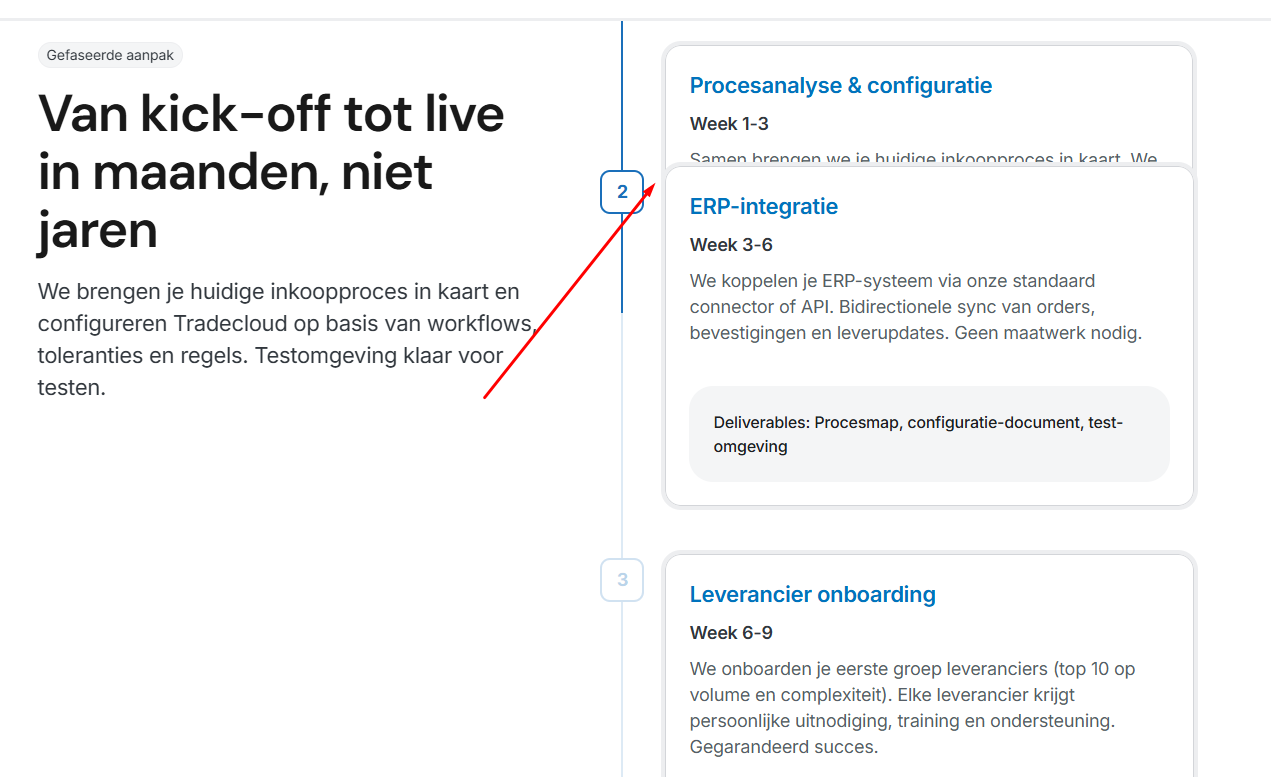
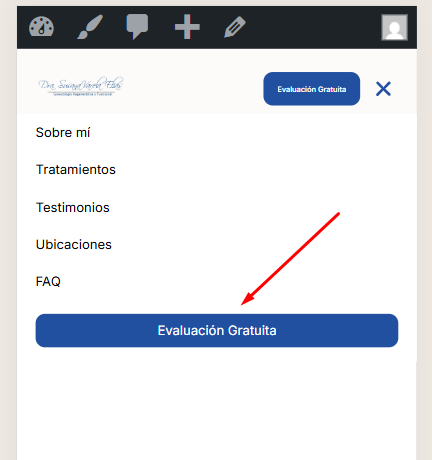
A common layout issue in Elementor occurs when long text — such as email addresses, phone numbers, or URLs — extends beyond its container. This breaks alignment, affects spacing, and can make an otherwise clean design look unpolished, especially on tablets and mobile devices.
This happens because long strings of text do not naturally wrap when the container width is restricted, particularly inside Flexbox layouts.
To solve this properly and permanently, apply the following CSS inside the widget’s Custom CSS panel.
selector {
    word-wrap: break-word;
    overflow-wrap: break-word;
    word-break: break-word;
    white-space: normal;
}
This ensures that:
- Long words automatically move to the next line
- URLs and email addresses do not stretch the layout
- Text remains fully responsive
- The design stays clean across all screen sizes
If the text is clickable (inside an <a> tag), add this as well:
selector a {
    word-break: break-word;
    overflow-wrap: break-word;
}
This guarantees that linked content wraps correctly without affecting click functionality.
In cases where the parent container uses display: flex;, text may still overflow due to width restrictions. To prevent that, include:
selector {
    min-width: 0;
}
This allows flex items to shrink properly and keeps the layout stable.
Performance & Best Practice Notes
- This solution is lightweight and does not impact page performance.
- It is fully responsive and works across modern browsers.
- It does not interfere with typography styling.
- It is safe to use on headings, paragraphs, links, and dynamic content.
For best results, apply the CSS directly to the specific widget instead of globally, unless the issue appears across multiple sections.
By implementing this properly, your design will remain structured, responsive, and visually balanced — ensuring a professional user experience on all devices.