
How to Convert Figma to Elementor (Step-by-Step Guide)
If you have a modern UI design in Figma and want to turn it into a fully functional WordPress website, Elementor is one of the best tools to make that happen.
In this guide, I’ll walk you through how to convert Figma to Elementor step by step, while maintaining design accuracy, responsiveness, and performance.
This article is written from real project experience, not theory, so you can follow it confidently.
What Is Figma to Elementor Conversion?
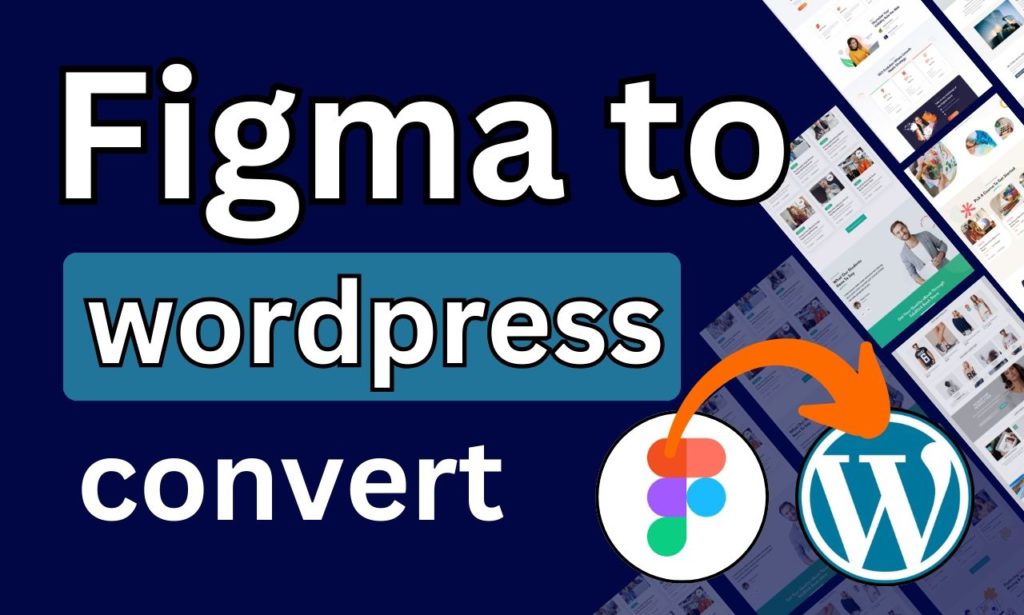
Figma to Elementor conversion is the process of transforming a static Figma UI design into a live, editable WordPress website using the Elementor page builder.
Unlike automated tools, a manual Elementor conversion ensures:
- Pixel-perfect layout
- Clean structure
- Fully responsive design
- Easy future editing
Why Choose Elementor for Figma Conversion?
Elementor is ideal for Figma conversion because it offers:
- Visual drag-and-drop control
- Precise spacing, typography, and alignment
- Responsive editing for mobile & tablet
- Fast development without heavy coding
For designers and clients alike, Elementor bridges the gap between design and functionality.
Tools You Need Before Starting
Before converting a Figma design to Elementor, make sure you have:
- Access to the Figma design file
- A WordPress website is installed
- Elementor Pro (recommended for advanced layouts)
- Brand assets (fonts, colors, icons, images)
Having everything ready saves time and avoids design mismatches later.
Step-by-Step: How to Convert Figma to Elementor
Step 1: Analyze the Figma Design Structure
Start by reviewing the layout carefully:
- Sections and spacing
- Font sizes and line heights
- Color styles
- Reusable components
A good understanding of the design prevents structural mistakes in Elementor.
Step 2: Set Up Global Styles in Elementor
Before building pages, configure:
- Global fonts
- Brand colors
- Button styles
- Heading hierarchy (H1–H6)
This ensures consistency across the entire website and speeds up development.
Step 3: Create the Layout Section by Section
Now build the page visually in Elementor:
- Match section widths and paddings
- Use containers or columns properly
- Avoid unnecessary nesting
Focus on structure first, not perfection.
Step 4: Match Typography & Spacing Precisely
This is where most beginners fail.
Pay attention to:
- Line height
- Letter spacing
- Font weight
- Padding & margin values
Small spacing errors can make the design look “off” even if everything else is correct.
Step 5: Add Responsive Adjustments
Figma designs often look perfect on desktop — but real users are on mobile.
In Elementor:
- Adjust padding per device
- Resize fonts for mobile
- Stack columns correctly
- Hide unnecessary elements if needed
Always preview on desktop, tablet, and mobile.
Step 6: Optimize Images & Performance
Before finalizing:
- Convert images to WebP
- Set proper image sizes
- Avoid heavy animations
- Enable lazy loading if possible
A fast site is just as important as a good-looking one.
Step 7: Final Testing & Client Review
Check:
- Cross-browser compatibility
- Clickable elements
- Responsive behavior
- Content accuracy
Only after testing should the site go live.
Common Challenges During Figma to Elementor Conversion
Some frequent issues include:
- Ignoring global styles
- Overusing custom CSS
- Poor mobile responsiveness
- Incorrect font matching
These problems usually happen when the conversion is rushed or done without a proper process.
Should You Do It Yourself or Hire an Expert?
If the design is simple, you can try converting it yourself.
But for complex layouts, animations, or business websites, working with an experienced developer saves time and avoids costly mistakes.
👉 For a professional, pixel-perfect, and fully responsive solution, check out this complete
Figma to Elementor Conversion Service:
Final Thoughts
Converting Figma to Elementor isn’t just about copying a design — it’s about building a clean, scalable, and responsive WordPress website that works in the real world.
When done correctly, Elementor gives you full control without sacrificing design quality.
If you want your Figma design to look the same — but perform even better — Elementor is the right choice.
✅ Next Step (SEO Tip)